Days that differ
Four different things can stop a day being an ordinary school day, and Schoolday keeps them apart because they mean different things and are drawn differently.
| Whose day | Where it comes from | |
|---|---|---|
| Holiday | Everyone’s | A calendar you name |
| Holiday care | One child’s | A keyword on that child’s own calendar |
| A day the school took over | One child’s | Typed in, per date |
| Off ill | One child’s | A switch |
Three more things change a day without closing it — a cancelled lesson, a substitution and an exam. All three can be typed in, or come straight from the school’s own system instead.
Holidays
Name one or more calendars that hold nothing but days off — school holidays, teacher training days. The contract is deliberately blunt: any event running on those calendars closes the school. That is why the option asks for calendars with nothing else in them.
Making one
Home Assistant’s built-in Remote Calendar subscribes to an ICS feed and keeps it read-only, which is exactly what a holiday calendar should be — nobody should be able to delete the summer holidays by fat-fingering a card.
- Settings → Devices & Services → Add integration → Remote Calendar
- Give it a name —
Schulferien Bayern, or whatever your region is called - Paste the ICS URL of a school-holiday feed for your state or country
That produces calendar.schulferien_bayern or similar, and that is what goes in the Days off field.
Where the URL comes from depends on where you live. In Germany several free services publish a per-state .ics; in other countries the education ministry or the school itself often does. What matters is not which one you pick but that it passes both of these:
- Only days off in it. Any event closes the school, so a feed that also carries term dates or “first day back” markers will close school on days there is school. Open it once and look.
- It reaches far enough ahead. A feed that stops at the end of this school year quietly stops closing the school in August. Check the last event before you trust it.
Checking it worked
The board sensor answers this directly. In Developer tools → Template:
{{ state_attr('sensor.schoolday_ben', 'outlook') }}
Every day in the window comes back with its mode. A holiday reads free, and the holiday’s own name comes with it.
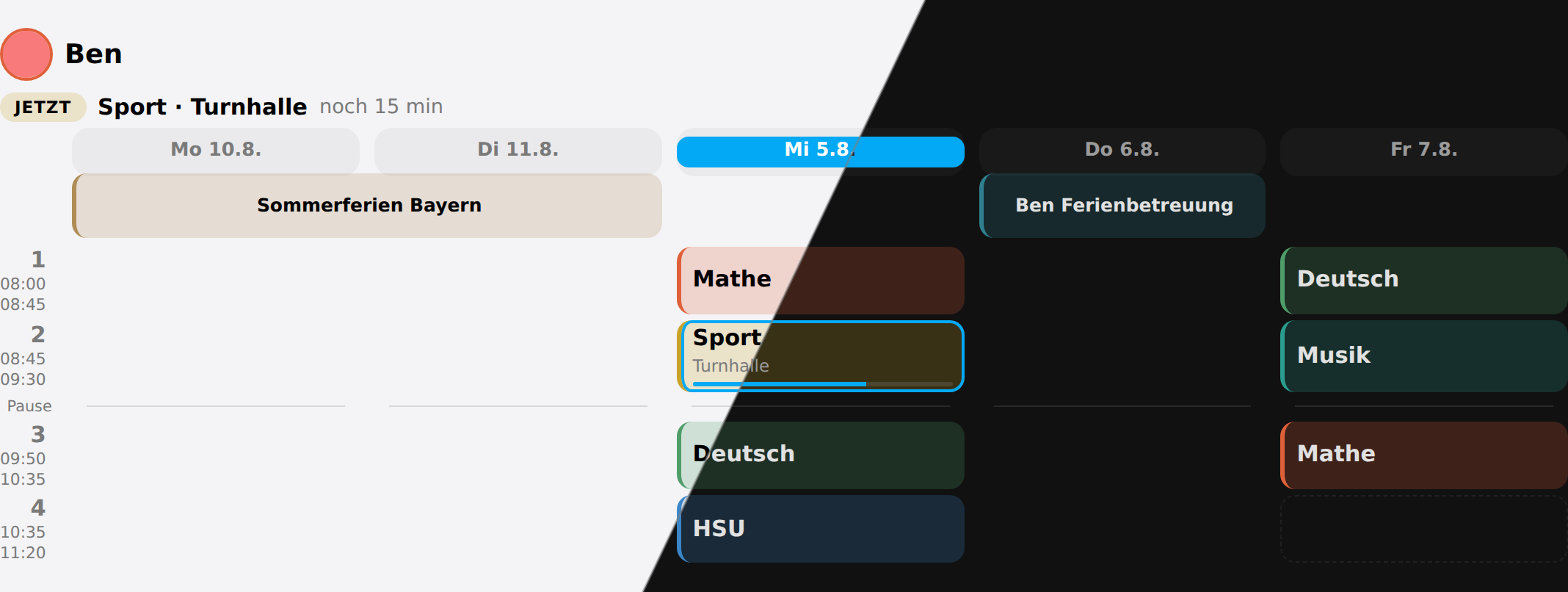 A holiday spans its columns as one block; a day in holiday care gets its own colour
Holiday care
A holiday spent in care is not a holiday at home: the child is out of the house and needs a lunchbox. Schoolday spots it by looking at that child’s own calendar for a keyword you choose — Ferienbetreuung, Hort, whatever your household calls it, matched case-insensitively anywhere in the title.
Their own calendar also holds the dentist and football, which is why only your keywords count.
A day in care can have its own leaving time: a time set with the child, or the start of the care event when it has one — “Ben Ferienbetreuung” from 06:45 sends Ben off at 06:45 that day, and an all-day event leaves the choice to the time set with him.
Where a child’s own calendar comes from
Most households keep one family calendar rather than one per child, which leaves Schoolday nothing to look at. Two ways round it:
- Give each child a calendar of their own — a local calendar in Home Assistant, or a shared one from whatever the household already uses.
- Split the family calendar automatically. This is what the setup Schoolday is developed against does: Family Calendar Sync watches one family calendar and copies every event into the calendar of the person named in it — “Ben Ferienbetreuung” lands in Ben’s, “Nik Zahnarzt” in Nik’s. You keep writing into the one calendar you already use, and Schoolday gets per-child ones for free.
Either way Schoolday reads them for one thing only: the holiday-care keyword, and when an event with it starts. It shows none of their events and never writes to a calendar.
A day the school took over
A timetable repeats forever, which is what makes it worth typing in once and also what makes it lie the moment the third period is cancelled. The Exceptions section is the thin layer that says otherwise — per child, per date:
- a name for the day takes the whole day over: “Wandertag”, “Sportfest”. The column says so in its own colour and shows no lessons. There is no separate “closed” switch, because a name and “the timetable still applies” is not a combination anybody means.
- something about one period — it is cancelled, or somebody is covering it with another subject. A covered lesson is drawn but marked: a substitution the reader cannot see is worse than no substitution layer at all.
A period nobody mentions runs exactly as the timetable says. Everything before today is dropped on every write, so this can never quietly become a second timetable nobody maintains.
action: schoolday.set_exception
data:
  member: Jan
  date: "2026-09-18"
  period: 3
  cancelled: true
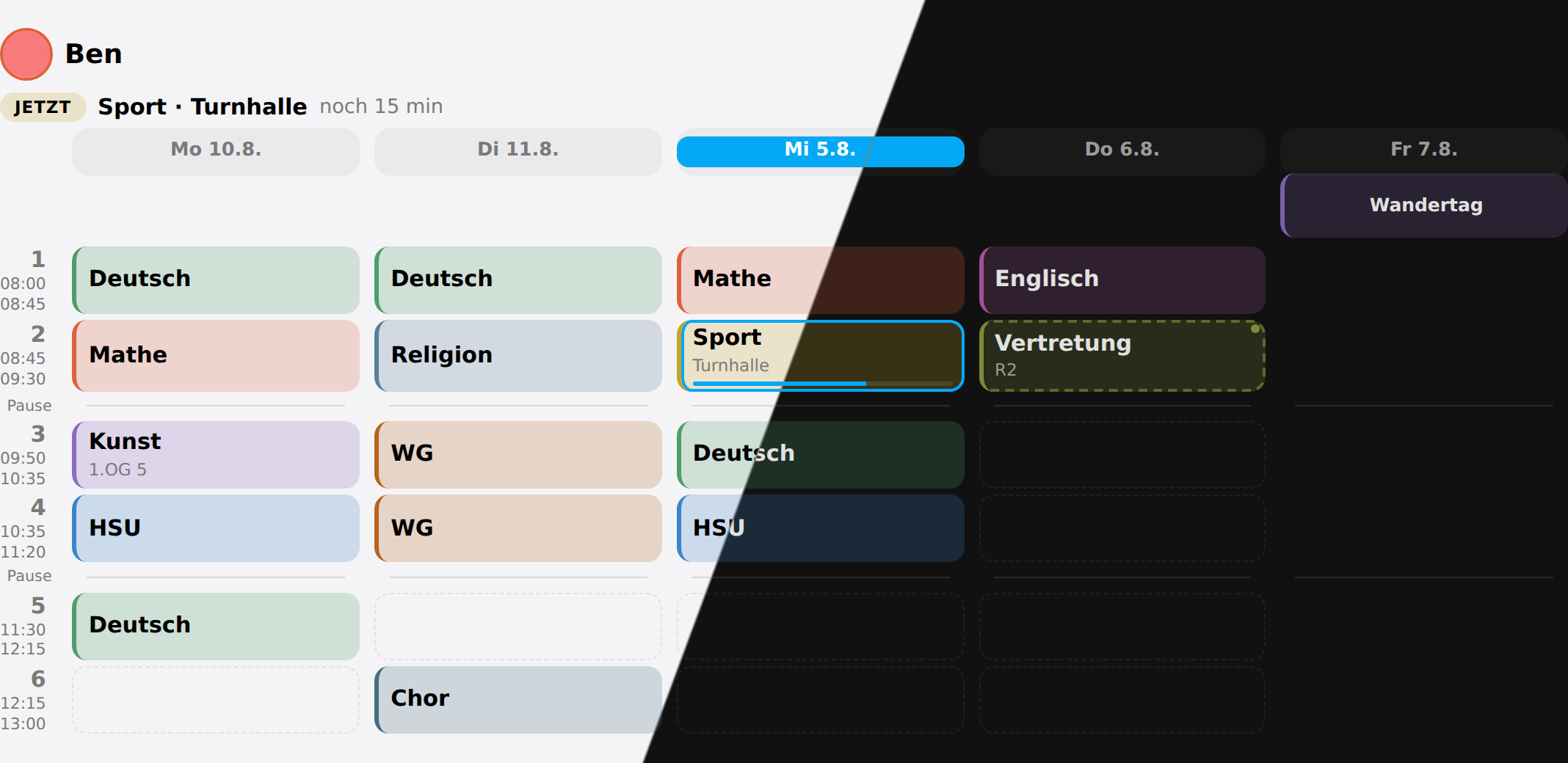 Thursday: second period covered by another subject and marked as changed, third period cancelled. Friday taken over by a school trip.
From the school’s own system
If the school runs WebUntis, Schulmanager Online, IServ or something like it, the cancellations, the substitutions and the exams are already written down somewhere — typing them in again is the copy nobody keeps up. Schoolday does not log into school portals: every one has its own login and its own quirks, schools switch parts of them off, and it would mean storing a child’s password. It reads a calendar instead. Integrations that turn a school portal into Home Assistant calendars already exist, and a calendar is the one shape all of them can produce.
Each child can have up to three, set under Edit a family member (or in the admin card’s Family section), folded away under School system (WebUntis, Schulmanager or similar) until one is set — most households never open it:
| What Schoolday reads from it | |
|---|---|
| Lessons calendar | Only what changed. An event whose title contains one of the cancellation words strikes every period it overlaps from that day; one with a substitution word puts the rest of its title in those periods instead, drawn marked like a substitution you typed in. A calendar from Schulmanager Online says what changed in its own words, and needs no words set at all. Either way it reaches the card, today’s and tomorrow’s subjects, and the packing list. |
| Exams calendar | Every event on it is an exam, as bluntly as every event on a holiday calendar is a day off. It is labelled on the lesson it falls in and shown the evening before. |
| Homework list | A to-do list the school system keeps. New homework on it is copied onto the child’s own homework list, where it is ticked off. |
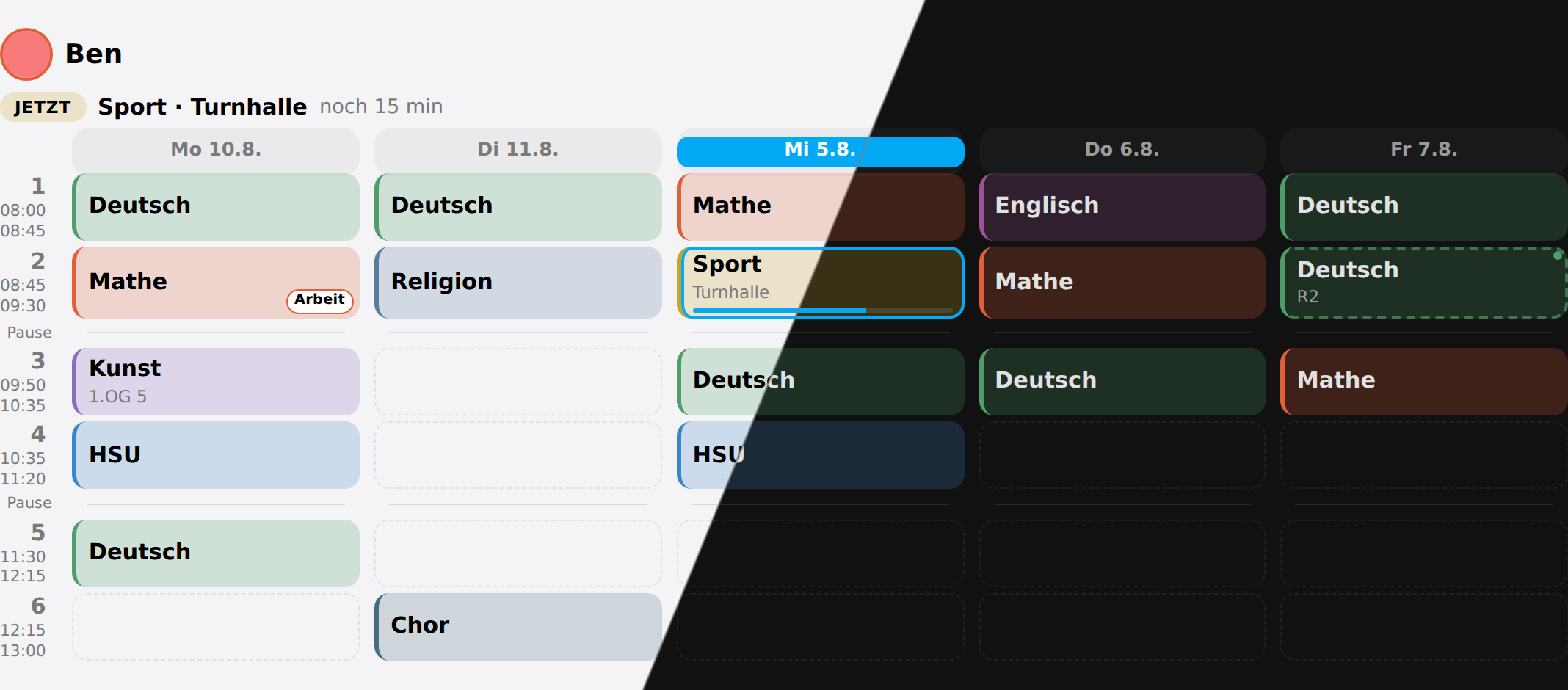 Monday’s Mathe carries an exam label from the exams calendar; Tuesday’s double WG is gone, cancelled on the lessons calendar; Friday’s second period is marked as a substitution.
The timetable stays the one you typed in. A lessons calendar is never used to build or correct it — only to say what this Tuesday does differently — so a school system that is down for an afternoon costs you the changes, not the week.
The calendars are read again every ten minutes as well as whenever they change. A calendar entity only ever describes the event running now or next, so a cancellation for Thursday’s fourth period, entered on Tuesday evening, changes nothing anybody could listen to — and the evening announcement would still be packing for it. When a re-read changes a day still to come, Schoolday also says so: see When the school changes the plan, and the blueprint that turns it into a notification on your phone.
What you typed in wins. A period you changed by hand under Exceptions is yours, whatever the calendar says about it, and a holiday or a sick day has no lessons left to cancel. Only timed events count on a lessons calendar: an all-day “Unterrichtsausfall” is a day without school, which is what the holiday calendars are for.
The cancellation and substitution words
Both are set under Days off and holiday care, folded away under Words from the school system — which only appears once a child has a lessons calendar, and is already right for WebUntis. One per line, matched case-insensitively anywhere in the title. Emptying a list switches that kind of change off.
| Until you change them | ||
|---|---|---|
| Cancellation words | Cancelled, Entfall, Ausfall, entfällt, fällt aus | WebUntis writes Cancelled: in English whatever the school’s language |
| Substitution words | Irregular, Vertretung | WebUntis writes Irregular: for every substitution |
For a substitution the word is taken off the front of the title and what is left is the subject: “Irregular: Deutsch” puts Deutsch in that period, and the event’s location becomes the room. A substitution in the same subject — another teacher, same lesson — changes nothing on the card unless the room moved.
A substitution beats a cancellation in the same period. WebUntis reports a replaced lesson as two events, the old one cancelled and the new one irregular, and believing only the first would empty a period that is very much on.
The subject is the school’s own wording, not matched to yours. If the school system writes D where your timetable says Deutsch, the card shows D, in a colour of its own. Guessing that M means Mathe would be right until the child also had Musik — tell the school system to write the full names instead, where it can. A cancellation or a new room is not affected: those keep the lesson your timetable has, in your spelling.
With WebUntis
The WebUntis integration (HACS) creates three calendars per login: the timetable, homework and exams.
- In its options, switch on Calendar - cancelled lessons — without it the cancelled ones are simply missing from the calendar, and there is nothing to read.
-
Its timetable calendar goes in Lessons calendar, its exams calendar in Exams calendar.
- Make its subject names match yours. It writes long names by default —
Mathematikwhere your timetable may sayMathe— and short names with Long name off. Under Replace Lesson name, map whichever it writes to your spelling:Mathematik: Mathe, andM: Matheas well, because the exams calendar takes the subject from the school’s exam list, which may give only the short name. A substitution then shows up in your subject’s name and colour, not asMathematikorM.
Leave Add Teacher to subject off for the lessons you care about: it turns “Irregular: Deutsch” into “Irregular: Deutsch - Mül”, and the card would show that as the subject.
If you had it replace “Cancelled: “ with something else — its own example is ❌ — put that in the cancellation words. Whether the exams calendar has anything in it depends on what the school shares through WebUntis; some schools keep exams out of it.
With Schulmanager Online
Schoolday does not talk to Schulmanager itself. The Schulmanager Online integration by MrIcemanLE does that: it logs in once for the household and creates, per child, a timetable calendar, an exams calendar, a calendar of school events and a homework list. Schoolday reads those.
What you need
- Schoolday 0.17.0 or newer.
- The Schulmanager Online integration, 0.12.0 or newer, from HACS. It is a custom repository, so add it first:
- HACS → ⋮ (top right) → Custom repositories, repository
https://github.com/MrIcemanLE/Schulmanager-homeassistant, type Integration. - Search HACS for Schulmanager Online, download it, and restart Home Assistant.
- Settings → Devices & services → Add integration → Schulmanager Online, with the e-mail address and password you use in the Schulmanager app.
- HACS → ⋮ (top right) → Custom repositories, repository
- A parent login at the school. If your children are at two schools, read Two schools, one parent login below before you start.
Then, for each child, under Edit a family member → School system:
- Its Stundenplan calendar goes in Lessons calendar, as it is. It holds every lesson, not only the changed ones, and writes the kind of change into each event’s notes —
Typ: cancelledLesson,Typ: substitution,Typ: roomChange. Schoolday reads that, whether or not the emoji option is on, so the cancellation and substitution words do not matter for it. A change of teacher alone is left out: the lesson is the one the timetable promised. - Its Arbeiten calendar goes in Exams calendar.
- Its Hausaufgaben list goes in Homework list.
Its subjects are the school’s abbreviations — D, M, Sp — so a substitution shows as D until the school writes full names. The other Schulmanager integration, schulmanager-online-hass, writes its change types the same way, in English (Type: substitution), and is read just as well.
Not every school uses every part of Schulmanager. A primary school may keep homework and events in it but no timetable, and then its timetable calendar simply stays empty.
Two schools, one parent login
Schulmanager keeps a separate account per school, even with the same e-mail address, and its app remembers the second one after you add it — so nobody notices if the two have different passwords. The integration only finds both schools when the password is the same at both; otherwise it sees one child. Set the same password at each school (in the app, with that school selected, Passwort ändern). If the integration was already set up with the old password, remove it and add it again.
Thank you
The Schulmanager side of this is entirely MrIcemanLE’s work: finding out how the Schulmanager app talks to its server, keeping up with it, and writing the change type into every lesson in a way another integration can read. Schoolday only had to listen. If it helps you, give their repository a ⭐ too. Thanks as well to rwunsch and to the schulmanager-online-api-client by Alpakat, which the integrations build on.
Any other calendar
Nothing here is specific to WebUntis or Schulmanager. An IServ or Moodle calendar export subscribed with Remote Calendar, or a local calendar somebody keeps by hand — “Ben Arbeiten” with one event per test — works the same way.
action: schoolday.set_member
data:
  member: Ben
  name: Ben
  lessons_calendar: calendar.ben_webuntis
  exams_calendar: calendar.ben_webuntis_exams
set_member replaces the whole member, so a call like this one also has to carry every other field you want to keep.
Off ill
Each child has a switch:
switch.schoolday_ben_ist_krank
Switching it on closes the day for that child and nobody else. Their timetable column says so, their routine falls silent, and sensor.schoolday_ben goes to free — so a morning announcement skips them without a single extra condition anywhere.
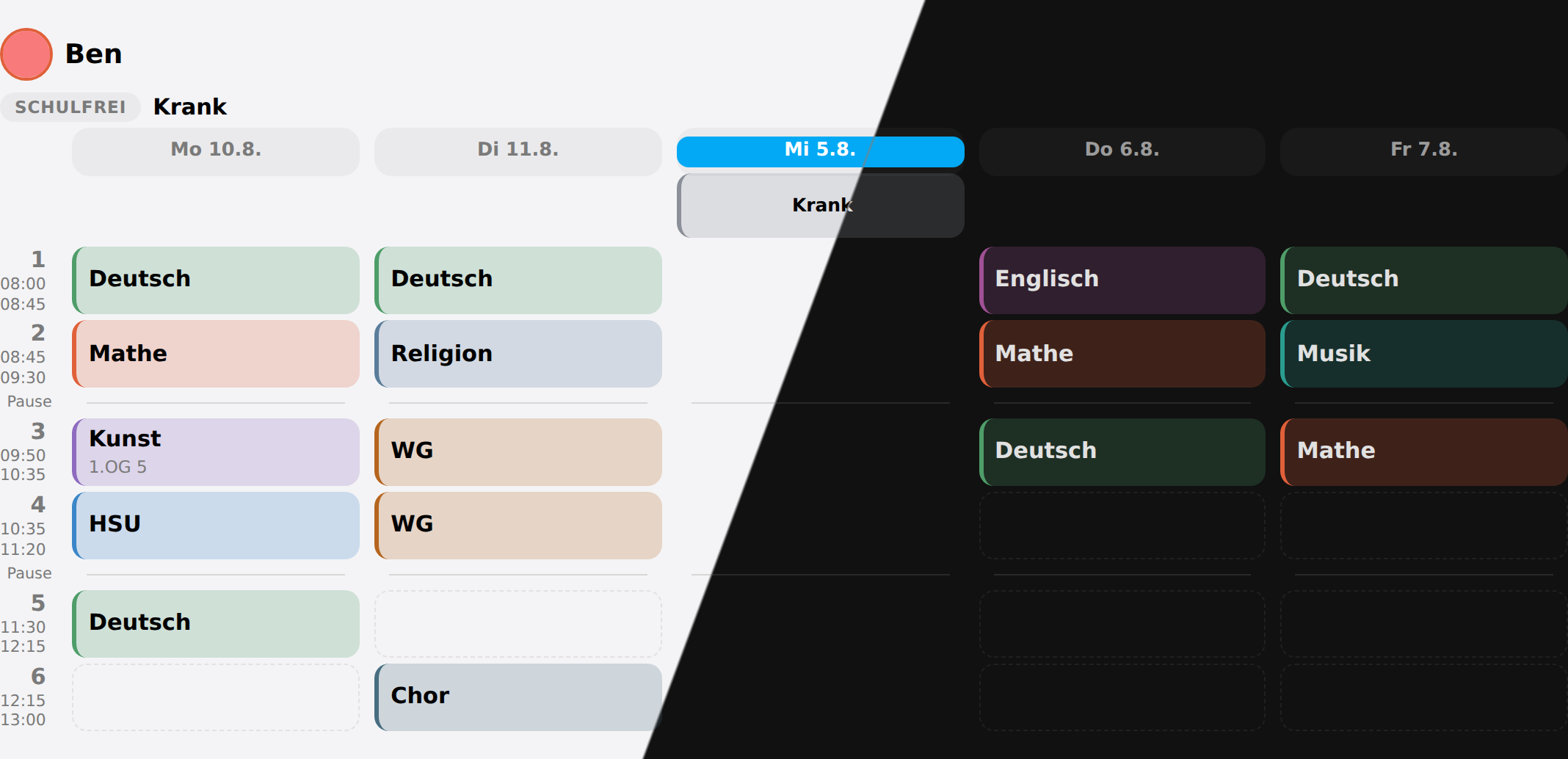 Off ill closes the day for that one child, in its own muted colour
It is stored as a last day, not a flag, and defaults to today. A flag has to be switched off by somebody remembering to, and the one thing worse than a board that does not know a child is ill is a board that still thinks so on Thursday. Two days of flu is one more tap, or one call with a date:
action: schoolday.set_absent
data:
  member: Ben
  until: "2026-09-18"